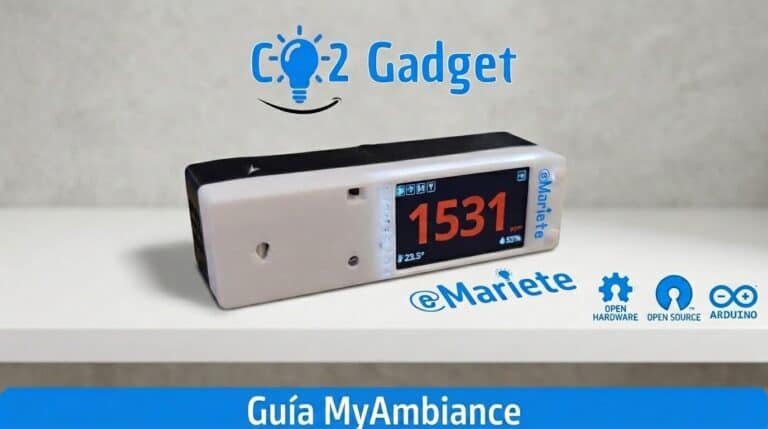
The app Sensirion MyAmbiance (free, iOS and Android) is the perfect companion for your Gadget CO₂ meter: it lets you view real-time readings via Bluetooth, configure the Wi-Fi without touching the board, and use your mobile as a secondary screen.
Using the meter couldn’t be simpler: switch it on, open the app on your mobile and start viewing the readings. No setup, no cables, no paperwork.
Download the app
Download MyAmbiance from the official app stores. It’s free, ad-free and has no in-app purchases:


Getting started
Once you’ve installed the app and enabled Bluetooth on your mobile:
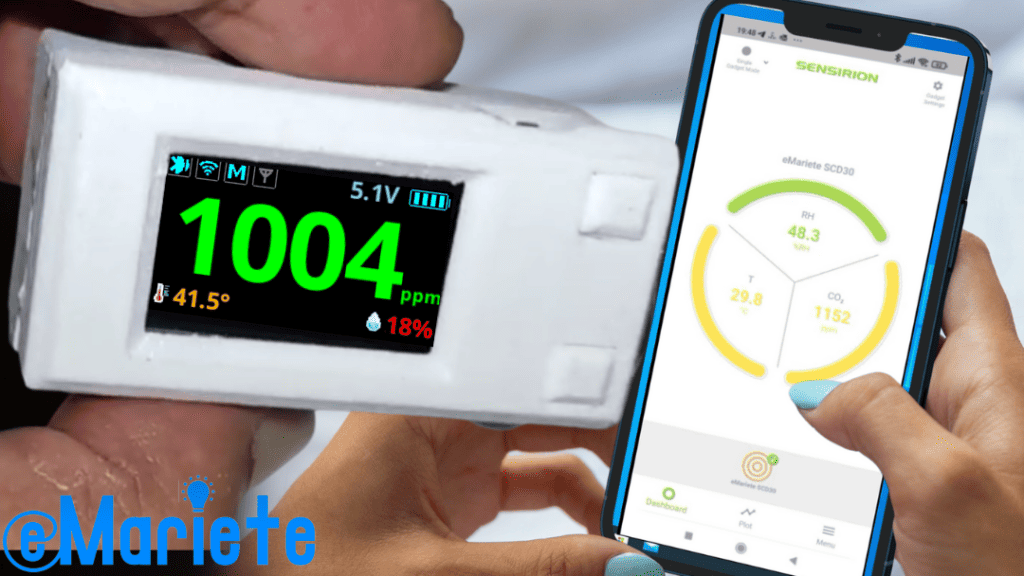
- Switch on your meter. When it starts up, CO2 Gadget activates Bluetooth Low Energy by default. The screen displays the CO2, temperature and humidity readings.
- Open MyAmbiance. The app automatically searches for compatible devices.
- «CO2-Gadget» will appear» in the list of detected devices. It may also appear under the hostname you have configured.
- Tap on the name from the meter to connect.
- In seconds You’ll see the data in real time: CO₂ in ppm, temperature in degrees and relative humidity.
If you have several meters at home, they will all appear in the list. You can connect to one at a time (the meter only supports a single active BLE connection).


What you can do with MyAmbiance
MyAmbiance is not just a data reader. These are its main features, integrated with CO2 Gadget:
- Real-time reading CO₂, temperature and humidity. The colour-coded system (green, yellow, orange, red) gives you an immediate visual indication of air quality.
- Historical charts over the last 24 hours. You can view the trends in CO₂, temperature and humidity.
- Set up Wi-Fi of the meter, which has no display or buttons. Ideal for headless installations (without a display).
- FRC Calibration from the Sensirion SCD4x sensors directly via the app, without needing the web interface.
- Notifications when CO₂ levels exceed the thresholds you set in the app.
- Export to CSV historical data from the app menu.
Set up Wi-Fi via MyAmbiance
This is one of the most useful features of MyAmbiance, especially if your meter doesn’t have a display:
- Connect to your meter via MyAmbiance
- Go to Settings (cog icon)
- Tap on ‘WiFi Configuration’
- A list of available Wi-Fi networks will appear. Choose yours
- Enter your password
- The meter will reset and connect to the new network
If the connection fails (for example, if the password is incorrect), the meter returns to its previous state and MyAmbiance will detect this via BLE so that you can try again.
Important note: The meter’s Wi-Fi must be in station (client) mode for the settings to be configured via MyAmbiance. If the meter is in AP (Access Point) mode, the Wi-Fi cannot be configured via the app.
Enable MyAmbiance in CO2 Gadget
For CO2 Gadget to send data to MyAmbiance, the «MyAmbiance» option must be enabled in the meter’s menu:
- Go to the meter menu (* on the serial port, or by pressing and holding the top button)
- Go to Configuration > BLE Configuration
- Make sure that MyAmbiance it is set to ON (and BLE Enable is also set to ON)
- If you’re using BTHome, it’s no problem: both can be active at the same time. BTHome uses the scan response so as not to interfere with MyAmbiance.
If you disable MyAmbiance, CO2 Gadget will continue to work as normal, but the app won’t be able to see it until you re-enable it.
FRC calibration via the app
If your meter is fitted with a Sensirion SCD4x sensor (SCD40 or SCD41), you can force a recalibration (FRC) directly from MyAmbiance. This is the most convenient method, as you do not need to open the web interface:
- Take the meter outside, where the ambient CO2 level is approximately 400 ppm (clean air)
- Wait 5–10 minutes for the sensor to stabilise at the outside temperature and humidity
- In MyAmbiance, go to Settings → Calibration → FRC
- Enter the reference value (typically 400 ppm)
- Confirm. Calibration takes a few seconds, after which the meter is calibrated
You can also do this via the Gadget CO₂ calibration website (http://[IP]/calibration.html), without having to go outside, using a known reference value.
MyAmbiance vs web interface
The two options complement each other. Here is a summary of what each one offers:
| Function | MyAmbiance | Web interface |
|---|---|---|
| View real-time data | Yes | Yes |
| Historical charts | 24 hours, exportable to CSV | 24 hours, exportable to CSV and JSON |
| Set up Wi-Fi | Yes, from my mobile | Yes |
| Calibrate FRC | Yes | Yes |
| Configure low power, MQTT, BTHome, ESP-NOW | No | Yes |
| Update firmware (OTA) | No | Yes |
| Access from outside the home | No (local BLE only, ~10m) | Yes (using a VPN or port forwarding) |
| You need Wi-Fi | No | Yes |
| Mobile phone battery | Drains the battery (BLE active) | No |
Coexistence with BTHome
MyAmbiance and BTHome Not only can they be active at the same time, but they are also designed not to interfere with one another. CO2 Gadget sends the BTHome data in the scan response of the BLE advertisement, leaving the main channel free for the connection with MyAmbiance.
This means you can have your mobile phone running MyAmbiance, displaying live data, whilst Home Assistant receives the same readings via BTHome – all from the same meter and at the same time.
Troubleshooting
My meter isn't showing up in the app. Check that BLE is enabled on the CO2 Gadget (it is enabled by default). If you have disabled it via the menu, re-enable it under Configuration > BLE Config > BLE Enable: ON.
It switches off after a few seconds. The BLE range is approximately 10 metres with a clear line of sight. Move further away from the meter or remove any obstacles (walls, metal furniture).
The app displays out-of-date information or freezes. Force close the app and reopen it. If the problem persists, restart the meter via the menu (Configuration > Reboot).
The app connects but does not display any data. Check that «MyAmbiance» is set to ON in the meter’s Configuration > BLE Config menu.
Wi-Fi cannot be set up via the app. Make sure the meter is in station (client) mode, not AP mode.
Did you find this helpful? Share this article. Any questions? Ask in the Telegram group.