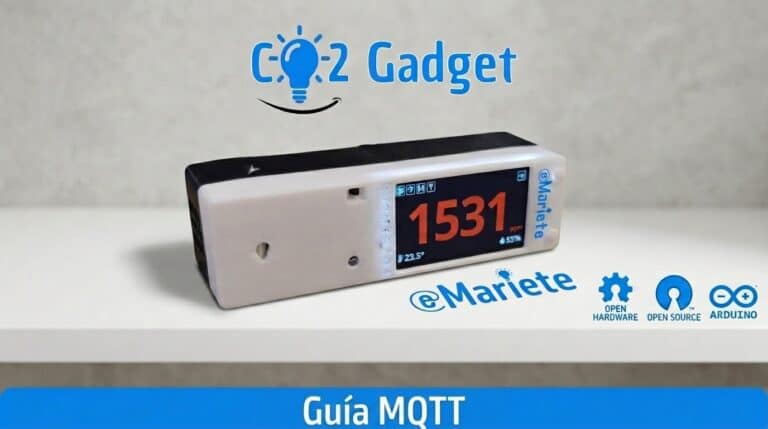
The integration of CO2 Gadget with Home Assistant via MQTT is fully automatic thanks to MQTT Discovery: as soon as your meter connects to the broker, Home Assistant creates all the sensors, configuration entities and selectors without you having to touch the YAML. Here you’ll find the full list of topics, supported remote commands and examples of automations.
The protocol MQTT enables CO2 Gadget publish its real-time measurements of CO₂, temperature, humidity, battery level and particulate matter (PM), as well as receive remote commands to calibrate the sensor or change the settings. In addition, the functionality of Home Assistant Discovery makes integration with your home automation system completely automatic.
Basic MQTT configuration
To use MQTT, you need to have the Wi-Fi enabled. You can configure MQTT via the meter’s menu, the website or the MyAmbiance app.
| Parameter | Description |
|---|---|
| Enable MQTT | Enable or disable MQTT (ON / OFF) |
| Topic | Root of the topics where the data will be published (default `CO2-Gadget`) |
| Client ID | Unique device identifier on the broker (default `mqttClientId` macro) |
| IP Broker | The IP address of your MQTT broker (Mosquitto, etc.) |
| Port | Broker port (default 1883) |
| Username / Password | Authentication with the broker (optional) |
| Discovery Prefix | Discovery prefix (default `homeassistant/`) |
Connection retries: secondsBetweenRetries = 15 s, maxMQTTmqttConnectionRetries = 2. Buffer PubSubClient: 1024 bytes.
You can access the settings via the website: http://ip_del_medidor/preferences.html, or from the on-screen menu: Settings → MQTT Configuration.
Topics published by your CO₂ monitor
Once connected to the broker, CO2 Gadget publishes the measurements to the following topics (using the root topic you have configured):
| Topic | Value | Description |
|---|---|---|
| `topic/co2` | 892 | CO₂ in ppm |
| `topic/temp` | 24.50 | Temperature in °C |
| `topic/humi` | 45.20 | Relative humidity at % |
| `topic/voltage` | 4.10 | Battery voltage at V (float) |
| `topic/battery` | 85 | Battery percentage at % (int) |
| `topic/pm1` | 5 | PM1.0 (µg/m³) if a PM sensor is present |
| `topic/pm25` | 12 | PM2.5 (µg/m³) if a PM sensor is present |
| `topic/pm4` | 8 | PM4.0 (µg/m³) if a PM sensor is present |
| `topic/pm10` | 15 | PM10 (µg/m³) if a PM sensor is present |
| `topic/uptime` | `12d 03h 45m` | Time on, readable format |
| `topic/freeMem` | 102400 | Free heap space in bytes |
| `topic/wifiRSSI` | -65 | WiFi RSSI in dBm |
| `topic/IP` | `192.168.1.50` | Current IP address of the meter |
| `topic/MAC` | `AA:BB:CC:…` | ESP32 MAC address |
| `topic/hostname` | `CO2-Gadget` | mDNS hostname |
| `topic/status` | `OK` | Availability (Last Will and Testament) |
Alarm topics
CO2 Gadget also displays messages when the configured concentration levels are reached. The alarms have hysteresis to prevent oscillations: PIN_HYSTERESIS = 100 ppm for the GPIO outputs, BUZZER_HYSTERESIS = 50 ppm for the buzzer. The outputs are reset when co2 < co2RedRange − hyst.
| Topic | Payload ON | Payload OFF |
|---|---|---|
| `topic/green` | Normal level | The orange alert level has been exceeded |
| `topic/orange` | Orange alert | Hysteresis drop |
| `topic/network` | Red alert | Hysteresis drop |
Home Assistant Automatic Discovery
If you enable MQTT Discovery, CO2 Gadget It configures itself automatically in Home Assistant without you having to do a thing. They are recorded 13 organisations under the prefix homeassistant/:
| Organisation | Class | Icon | Description |
|---|---|---|---|
| `battery` | diagnostic | `mdi:battery` | Battery percentage (%) |
| `voltage` | diagnostic | `mdi:flash` | Battery voltage (V) |
| `co2` | sensor | `mdi:molecule-co2` | CO₂ in ppm |
| `temp` | sensor | `mdi:temperature-celsius` | Temperature (°C) |
| `humi` | sensor | `mdi:water-percent` | Relative humidity (%) |
| `PM1`, `PM2.5`, `PM4`, `PM10` | sensor | `mdi:air-filter` | Particulate matter (µg/m³, only if a PM sensor is present) |
| `freeMem` | diagnostic | `mdi:memory` | Free heap (bytes) |
| `wifiRSSI` | diagnostic | `mdi:wifi` | WiFi RSSI (dBm) |
| `uptime` | diagnostic | `mdi:clock-time-eight-outline` | Time on |
Device information: manufacturer = emariete.com, model = CO2 Gadget, hw_version = FLAVOUR, sw_version = "<ver><rev> (<FLAVOUR>)", configuration_url = http://<ip>. The object_id is generated as co2_gadget_<field> (fallback). Also compatible with OpenHAB y HomeSeer.
Remote commands via MQTT
As well as uploading data, you can control your meter remotely:
| Topic | Payload | Function |
|---|---|---|
| `topic/calibration` | 400 | Forced calibration (400–2000 ppm) |
| `topic/ambientpressure` | 1013 | Pressure compensation (mbar) |
ThresholdManager: smart posts
The system of smart thresholds evaluates 4 independent channels (Display, BLE, MQTT, ESP-NOW). Each channel only sends a message when the value crosses the configured threshold — this prevents unnecessary MQTT traffic in low-power mode. Configurable from the page /low_power.html (4 tabs, one per channel) and from getThresholdsAsJson / saveThresholds. Ideal for saving battery life and reducing bandwidth usage on the broker.
Troubleshooting
| Problem | Solution |
|---|---|
| It does not connect to the broker | Check the broker’s IP address and ensure Wi-Fi is enabled |
| There is no data in HA | Check that the root topic matches |
| Discovery isn't working | Enable MQTT Discovery in the settings |
| Values are not updated | Check the thresholds in ThresholdManager |
Important notes
- MQTT requires Wi-Fi to be enabled
- In LOW_POWER mode, the frequency depends on the wake cycles
- No cloud services — everything on your local network
- CO2 Gadget offers more comprehensive MQTT integration than most commercial meters
¿Te ha sido útil? Comparte este artículo. ¿También consulta la Menu Guide. Any questions? Ask on the Telegram group or open a issue on GitHub.